JAMS includes different methods for scheduling Jobs and Setups. One is to create a straight-forward schedule with fixed start and end execution times. Another method defines a flexible windows of time when Jobs may be scheduled. Using this “Named Times” option JAMS can prevent Jobs from executing until their scheduled window is enabled and can also take various actions when a Job’s window closes before the Job completes.
Defining or Modifying Schedule Windows to Jobs and Setups
You can assign a Named Time to Jobs and Setups using a schedule window. If the time window needs to be shorter or longer, or a new time-of-day-range needs to be set, you make just one entry that applies to all Jobs and Setups that use it. This simplifies the process of making schedule modifications to Jobs and Setups to just a few key strokes.
To assign a new or edit an existing Named Time definition, follow the steps below:
- From the JAMS Client click the Times shortcut in the Management Group.
- The Named Time Definitions View opens.
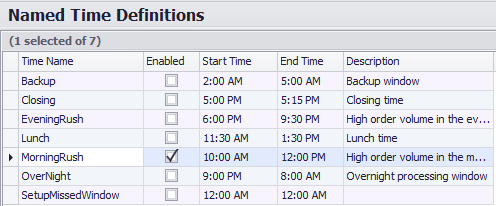
- To create a new Named Time definition, click the Add button on the Ribbon Bar to open the JAMS Named Time Definition Wizard. Enter a unique name for the Named Time and specify a start and end scheduled time. Click the Finish button.
To modify an existing Name Time, double-click a definition from the list to open its property window. Select the Times tab and make any modifications to the start and end time schedules.
For more information, refer to the Named Times Properties section at the end of this topic.
Use the following controls to modify each Named Time definition.
- Start Time: enter the time of day this Named Time is scheduled to be enabled.
- Automatically enable: Enable the checkbox if you want JAMS to automatically enable this Named Time at the Start Time specified. If unchecked, the Named Time remains disabled until it is manually enabled.
- End Time: enter the time of day this Named Time is scheduled to be disabled.
- Automatically disable: Enable the checkbox if you want JAMS to automatically disable this Named Time at the End Time specified. If unchecked, the Named Time remains enabled until it is manually disabled.
- Last Time Window was Automatically Enabled or Disabled: the date and time the selected Named Time was automatically enabled or disabled.
- Currently Enabled: True if the Named Time is enabled. Use the button to manually enable or disable the Named Time.
Named Times can be used to limit when manually submitted Jobs are allowed to run; for example, during periods when other Jobs may use significant system resources. See the Missed Windows Action No Action option described in item #6 below.
Assigning Named Times to Jobs and Setups
Once a Named Time has been created you can then associate it with any Job or Setup.
- To get started, double-click a Job or Setup to open its definitions window.
- From the definitions window select the Properties tab. Locate and expand the Submit Times option.

- Click the File browser button to view a list of existing Name Time definitions. Double-click a definition to populate the field.

- Use the adjusters to define the desired schedule time window.
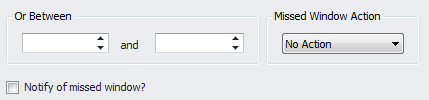
- From the dropdown list, select an action when a Job or Setup fails to execute within the defined schedule window. The options include:
- No Action: The Schedule Window is only honored if the Job is submitted manually. Manual and automatic submissions of a No Action Job will run to completion, even if the Schedule Window closes.
If the No Action Job is set to submit automatically, it will start based on the automatic submit time, and ignore the constraints of the schedule window.
For instance, if a Window of 2:00PM to 4:00PM exists on a No Action Job and the Job is submitted manually at 1:00PM, the Job cannot run until it reaches the 2:00PM start of the Window. If the same Job is configured to submit automatically at 1:00PM, that automatic submission will not wait for the 2:00PM start of the window, it will run as soon as it is able. -
Continue: The Job does not start until the Schedule Window opens and continues running to completion, even if the Schedule Window closes. There is no rescheduling option.

Continue Jobs within a Setup: If a Setup is executing during the schedule window of a continue Job within the Setup, the window requirements of the Job are considered met and the continue Job will begin executing as soon as it is able, regardless of the current state of the schedule window. - Abort or Delete: The Job does not start until the Schedule Window opens and is deleted or aborted if the window closes before the Job completes.
- Reschedule or Continue: The Job does not start until the Schedule Window opens. If the Job does not start by the time the window closes, it is rescheduled for the next time the window opens. If the Job does start, this action allows the Job to continue to completion even if the window closes.
- Restart or Reschedule: The Job does not start until the Schedule Window opens. If the Job has not completed by the time the window closes, the Job is forced to abort, and is rescheduled to run the next time the window opens.
- Optionally, enable the Notify of missed window? checkbox to tell JAMS to perform a Job or Setup notification if a Schedule Window is missed.
- Save the changes in the definitions window.
Named Time Properties
The Named Time Properties are divided into two tabs: Named Time and Times.
Named Time tab
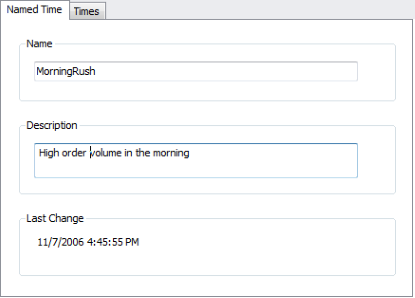
Name
This property includes the unique identifier for the Named Time.
Description
This optional property appears in menus, lists and reports and provides a more detailed explanation for the Named Time.
Last Changed
The Last Changed property displays the user (Username) who last modified the Named Time along with the date and time of the modification.
Times tab
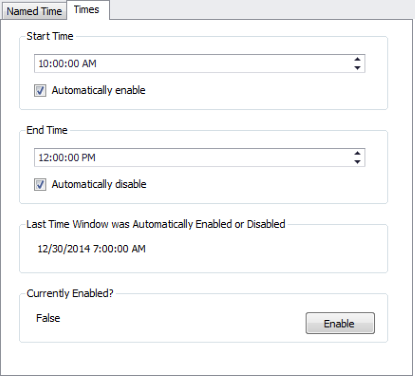
Start Time
Enter the time of day the Named Time is scheduled to begin.
Automatically enable
If checked (true), JAMS automatically enables the Named Time at its specified Start Time. When unchecked (false), the Named Time remains disabled until it is manually enabled.
End Time
Enter the time of day the Named Time is scheduled to end.
Automatically disable
If checked (true), JAMS automatically disables the Named Time at its specified End Time. When unchecked (false), the Named Time remains enabled until it is manually disabled.
Last Time Window was Automatically Enabled or Disabled
This property displays the last date and time when the Named Time was automatically enabled or disabled.
Currently Enabled?
If true, use the Disable button to manually disable the Named Time. If false, use the Enable button to manually enable the Named Time.