JAMS Agent for IBM i
The JAMS Agent for IBM i is designed to support the IBM i operating system (aka i5/OS and OS/400). JAMS connects to the IBM i using TCP/IP protocols.
Up to 128 characters can be used for passwords when attempting to run a Job on the IBM i. The following characters can also be used: ~`! @#$%^&*()_-+={[}]|\:;"'<,>.?/
Deploying the JAMS Agent for IBM i
The JAMS Agent for IBM i is installed along with the JAMS Scheduler, but it must be pushed out to the Agent machines. Specifically, deployment is controlled from the Agents view in the JAMS Client.
Before attempting to deploy, make sure you have provided each JAMS user the appropriate IBM i access along with the privileges required to deploy the Agent.
Viewing the JAMS Agent for IBM i Version
After you have deployed the JAMS Agent for IBM i, you can view its version number.
- On the JAMS Scheduler, go to: C:\Program Files\MVPSI\JAMS\Scheduler\Agents\IBMSeriesi\version.txt.
- Open the version.txt and view the version number for the installed Agent.
Multiline Commands
Multiline commands can be used, and they follow CL programming rules. Commands are to be entered on separate lines. For example:
CALL PGM(PROGRAM1) PARM(‘ABC’)
CALL PGM(PROGRAM2) PARM(‘DEF’)
CALL PGM(PROGRAM3) PARM(‘GHI’)
If a command is long, it can be split over multiple lines. All the lines for the command (except for the last line) must end with a <space>+. For example:
CALL PGM(PROGRAM1) +
    PARM(‘ABC’)

CALL PGM(PROGRAM2) +
    PARM(‘DEF’)

CALL PGM(PROGRAM3) +
    PARM(‘GHI’)
Indenting the line does not have an effect. If the command contains a + on the last line, it will be ignored as long as there is a blank line between the commands. Without the blank line in between commands, it assumes the next command is still part of the previous command and appends them together.
Comments can also be added to the Job by enclosing them in /* */. The comment will also be printed in the Job Log. For example:
/* This is the first program to be called. */
CALL PGM(PROGRAM1) PARM(‘ABC’)

/* This is the second program to be called. */
CALL PGM(PROGRAM2) PARM(‘DEF’)

/* This is the third program to be called. */
CALL PGM(PROGRAM3) PARM(‘GHI’)
Upgrading the JAMS Agent for IBM i
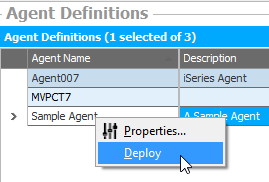
Installing an updated version of JAMS may already include the JAMS Agent. To deploy the update, select one or more agents from the Agent Definitions view, right-click, and select Deploy.
Troubleshooting the JAMS Agent for IBM i Deployment
The most common issues with the JAMS Agent deployment are:
- The user selected for the deployment job does not have sufficient privileges on the target machine.
- FTP settings are disabled or blocked.
To gain a more detailed view of the deployment, review the Job Log of the DeploySeriesi in Job History.
If the JAMS DeploySeriesi Job does not work because of access restrictions, such as the FTP is blocked, you can manually deploy the Agent by following steps described below:
- Create a JAMS user profile:
CRTUSRPRF USRPRF(JAMS) PASSWORD(*NONE) SPCAUT(*JOBCTL)
- Create a library:
CRTLIB LIB(JAMSLIB)
- Create a save file:
CRTSAVF FILE(JAMSLIB/JAMSSAVF)
- Copy the JAMSSAVF.SAVF from the JAMS Scheduler to the AS/400 server. (JAMSSAVF.SAVF is located at C:\Program Files\MVPSI\JAMS\Scheduler\Agents\IBMSeriesi by default.)
- Restore the objects:
RSTOBJ OBJ(*ALL) SAVLIB(JAMSLIB) DEV(*SAVF) SAVF(JAMSLIB/JAMSSAVF) MBROPT(*ALL) RSTLIB(JAMSLIB)
- Start the JAMS subsystem:
STRSBS SBSD(JAMSLIB/JAMS)