Symitar in JAMS
Installing the Symitar Integration Pack
If the JAMS Integration Pack for Symitar is not installed, run the JAMS Installer and check the "JAMS Integration Pack for Symitar" component in the Feature Selection step.
Creating a Symitar Job
- Create a Job in the Desired folder and choose the Workflow Execution Method.
- Select the desired folder for the Symitar Job, then ensure the Job Definitions tab is selected.
- Click the Add button from the Control Bar to open the Add a New JAMS Job Definition dialog.
- In the dialog, give the new Job a Name, Description (optional), and Execution Method.
In this case, select Workflow to create the Symitar Job. - By default, the full Job Definition dialog will open when the Job is initially saved. Click OK.
- The Job Definition dialog will open.
- Define Elements, Parameters, Security, Properties, and Documentation as desired.NOTE: An Execute As property should be configured with a user that has access to the Symitar Server.
- Select the Source tab, and define the Job using the Workflow Interface.
(Keep reading this document for more information on the Workflow Interface and Symitar Activities.) - Save and Close the Job Definition dialog.
Defining a Symitar Job using the Workflow Interface
Workflow Interface
The source for a Symitar Job displays the Workflow Interface. This interface is comprised of three panels: the Toolbox panel, Activity panel, and Properties panel. Symitar Activities can be found in the Toolbox panel, under the "SYM" group. Activities will be used to define the Symitar Job.
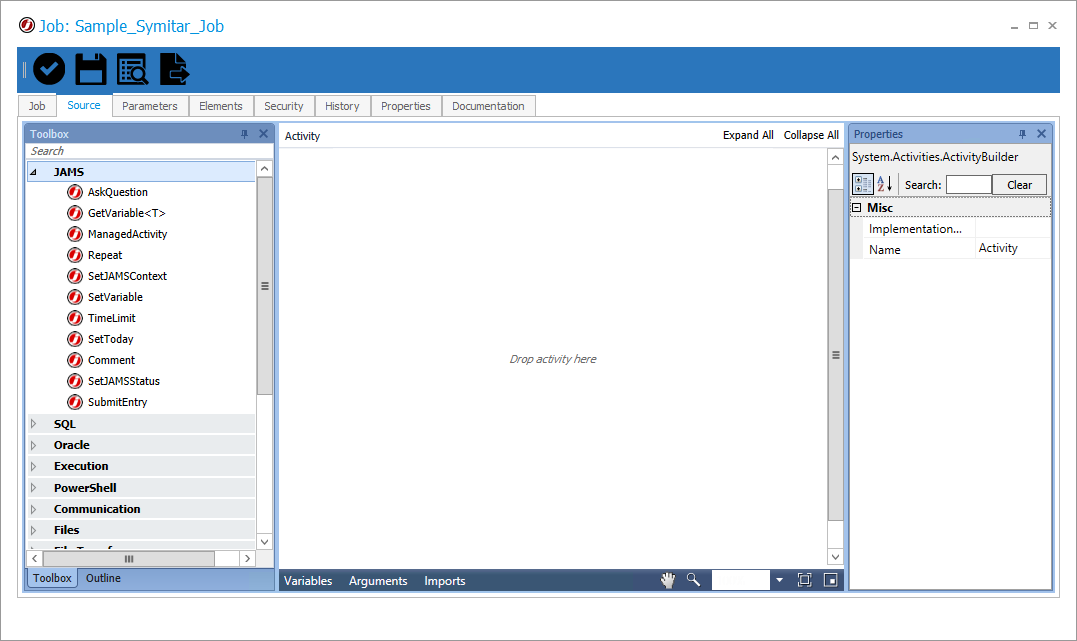
Toolbox Panel
The Toolbox Panel contains dozens of grouped Activities that can be used in the workflow. These activities are the building blocks of a Workflow Job. Activities may be used exclusively, or combined with other activities to create a workflow.
Activity Panel
The Activity Panel is the Designer section of the workflow. Drag activities from the toolbox to this area to add them to the workflow, or move those activities around in the workflow window. Right-click on items in this panel to get additional options.
Properties Panel
Shows the available properties of any selected element or activity. The properties of each activity can be quickly set from this panel.
Building Symitar Workflows
A single Symitar Activity can be utilized by dragging one of the available activities from the Toolbox Panel into the Activity Panel and setting the properties for that Activity.
To utilize multiple activities in a workflow, JAMS requires a Parent Activity to contain other activities. Note that JAMS will automatically add "Sequences" to the workflow if another parent activity is not set. Sequences may be nested inside of other Sequences or Parent Activities in a workflow.
Automatically Add Sequences
- With at least one activity in the Activity panel, drag another activity from the toolbox panel to the Activity panel.
- Hover the new activity over any existing activity. Grey bars will appear to show possible placement locations.
- Release the activity in the desired location. A sequence will be added if necessary.
Note that moving existing activities will also cause the placement location bars to appear, and will also result in the creation Sequences when necessary.
Passing Parameters to a Symitar Job
Typically, executing a Symitar job involves responding to a series of prompts; for example, what is the job name?. . . the queue?
A Symitar job may include other prompts that are unique to the job. When starting a Symitar job, if JAMS encounters an unexpected prompt, it looks for a workflow variable/JAMS parameter named "SymParam1". If this parameter is found, JAMS inserts its value as the response to the prompt. However, if this variable/parameter is not found, JAMS uses the default value defined in the Symitar job.
Symitar Activities
A small overview of properties and function of each Symitar Activity are listed here. When defining Symitar Activities, it is important to keep in mind:
- Symitar pathways will be case sensitive in UNIX or LINUX environments
- DateTime values are formatted as YYYYMMDD
DataFiletoPC
Downloads a DataFile from the FTP Server to the PC. DataFile is downloaded from the SYMnnn/DATAFILES directory, where nnn is a three-digit SYM Number, such as ‘007’.
| Property | Description |
|---|---|
| JAMSUsername | The User ID for AIX Login. Any JAMS user. |
| LocalDirectory | The local directory is the download location for the SYM DataFile. |
| DisplayName | Use to modify the property name as displayed in the activity panel. |
| Password | The AIX password. Use when overriding the value in the SymConfig Activity. As an alternative, if you wish to hide the password from viewing, (1) create a user in JAMS, (2) set the "Logon As" to the AIX Username, (3) click the password button and (4) enter the password for this account, and (5) then use that JAMS User Name in the JAMSUserName workflow property. |
| ServerFileName | The name of the DataFile on the SYM Server in the '/SYMnnn/DATAFILES' directory. |
| Servername | The name of the AIX server. Use when overriding the value set in the SymConfig activity. |
| SymNumber | The Sym Number. Use when overriding the value in the SymConfig activity. This parameter defaults to '000'. |
| UserName | The AIX UserName. Use when overriding the value in the SymConfig activity. |
DeleteLetterFile
Deletes a LetterFile from the '/SYMnnn/LETTERSPECS' directory
| Property | Description |
|---|---|
| JAMSUsername | The User ID for AIX Login. Any JAMS user. |
| DisplayName | Use to modify the property name as displayed in the activity panel. |
| Password | The AIX Password (Use when overriding the value in the SymConfig Activity). As an alternative, if you wish to hide the password from viewing, create a User in JAMS, set the "Logon As" to the AIX Username, click the password button and enter the password for this account, and then use that JAMS User Name in the JAMSUserName workflow property. |
| ServerFileName | The name of the LetterFile to delete from the '/SYMnnn/LETTERSPECS' Directory on the SYM Server. |
| ServerName | The name of the AIX Server. Use when overriding the value set in the SymConfig activity. |
| SymNumber | The Sym Number. Use when overriding the value in the SymConfig Activity. The parameter defaults to '000'. |
| UserName | The AIX UserName. Use when overriding the value in the SymConfig activity. |
EmailReports
Send a report generated from ReportFileToPC as an email attachment. The report must be assigned to a Workflow Variable of type SymReport.
| Property | Description |
|---|---|
| BCCAddress | The address of user(s) to receive blind carbon copies of the email. |
| CCAddress | The address of user(s) to receive carbon copies of the email. |
| FromAddress | The address to be used to send the email. |
| Reports | The report(s) to be sent as attachments to the email. |
| Subject | The subject of the email to be sent. |
| ToAddress | The address of the user(s) to receive the email. |
| BodyMessage | The body of the message to be sent. |
| SMTPServer | The SMTP server to be used to email handling. |
| JAMSUsername | The User ID for AIX Login. Any JAMS user. |
| DisplayName | Use to modify the property name as displayed in the activity panel. |
| Password | The AIX Password (Use when overriding the value in the SymConfig Activity). As an alternative, if you wish to hide the password from viewing, create a User in JAMS, set the "Logon As" to the AIX Username, click the password button and enter the password for this account, and then use that JAMS User Name in the JAMSUserName workflow property. |
| ServerName | The name of the AIX Server. Use when overriding the value set in the SymConfig activity. |
| SymNumber | The Sym Number. Use when overriding the value in the SymConfig Activity. The parameter defaults to '000'. |
| UserName | The AIX UserName. Use when overriding the value in the SymConfig activity. |
FileToPC
Downloads a SYM File from the FTP Server to the PC. The File is downloaded from the specified directory.
| Property | Description |
|---|---|
| JAMSUsername | The User ID for AIX Login. Any JAMS user. |
| LocalDirectory | The download location for the SYM File. |
| DisplayName | Used to modify the property name as displayed in the activity panel. |
| Password | The AIX Password (Use when overriding the value in the SymConfig Activity). As an alternative, if you wish to hide the password from viewing, create a User in JAMS, set the "Logon As" to the AIX Username, click the password button and enter the password for this account, and then use that JAMS User Name in the JAMSUserName workflow property. |
| ServerDirectory | Server Directly beneath the '/SYMnnn/' folder |
| ServerFileName | The Name of the file on SYM server in the specified Directory. |
| ServerName | The Name of the AIX Server. Use when overriding the value in the SymConfig Activity. |
| SymNumber | The SYM Number. Use when overriding the value in the SymConfig activity. Defaults to '000' |
| UserName | The AIX Username. Use when overriding the value in the SymConfig activity. |
LetterFiletoPC
Downloads a LetterFile from the FTP Server to the PC. The LetterFile is downloaded from the SYMnnn/LETTERSPECS directory, where nnn is a three-digit SYM Number, such as ‘007’.
| Property | Description |
|---|---|
| JAMSUsername | The User ID for AIX Login. Any JAMS user. |
| LocalDirectory | The local directory is the download location for the SYM LetterFile. |
| DisplayName | Used to modify the property name as displayed in the activity panel. |
| Password | Use when overriding the value in the SymConfig Activity. As an alternative, if you wish to hide the password from viewing, (1) create a user in JAMS, (2) set the "Logon As" to the AIX Username, (3) click the password button and (4) enter the password for this account, and (5) then use that JAMS User Name in the JAMSUserName workflow property. |
| ServerFileName | The name of the LetterFile on the SYM Server in the '/SYMnnn/LETTERSPECS' directory. |
| ServerName | The name of the AIX server. Use when overriding the value set in the SymConfig activity. |
| SymNumber | Use when overriding the value in the SymConfig activity. This parameter defaults to '000'. |
| UserName | The AIX UserName. Use when overriding the value in the SymConfig activity. |
PCToDataFile
Uploads a DataFile from the PC to the FTP server. The DataFile is uploaded to the SYMnnn/DATAFILES directory, where nnn is a three-digit SYM Number, such as ‘007’.
| Property | Description |
|---|---|
| JAMSUsername | The User ID for AIX Login. Any JAMS user. |
| LocalDirectory | The local directory of the Data File to send to the '/SYMnnn/DATAFILES' directory on the SYM Server. |
| LocalFileName | The Local file name of the DataFile to upload to the '/SYMnnn/DATAFILES Directory on the SYM server. |
| DisplayName | Used to modify the property name as displayed in the activity panel. |
| Password | Use when overriding the value in the SymConfig Activity. As an alternative, if you wish to hide the password from viewing, (1) create a user in JAMS, (2) set the "Logon As" to the AIX Username, (3) click the password button and (4) enter the password for this account, and (5) then use that JAMS User Name in the JAMSUserName workflow property. |
| ServerName | The name of the AIX Server. (Use when overriding the value set in the SymConfig activity). |
| SymNumber | Use when overriding the value in the SymConfig Activity. This parameter defaults to '000' |
| UserName | The AIX UserName. Use when overriding the value in the SymConfig activity. |
PCToEditFile
Uploads an EditFile from a local location to a remote folder via FTP operation
| Property | Description |
|---|---|
| Overwrite | Turn overwriting on or off |
| JAMSUsername | The User ID for AIX Login. Any JAMS user. |
| LocalDirectory | Local Directory of the Edit File to send to the '/SYMnnn/REPORT' directory on the server |
| LocalFileName | Local File Name of the Edit File to send to the '/SYMnnn/REPORT' directory on the server |
| DisplayName | Used to modify the activity name property as displayed in the activity panel. |
| Password | Use when overriding the value in the SymConfig Activity. As an alternative, if you wish to hide the password from viewing, (1) create a user in JAMS, (2) set the "Logon As" to the AIX Username, (3) click the password button and (4) enter the password for this account, and (5) then use that JAMS User Name in the JAMSUserName workflow property. |
| ServerName | The name of the AIX server. Use when overriding the value set in the SymConfig activity. |
| SymNumber | The Sym Number. Use when overriding the value in the SymConfig activity. The parameter defaults to '000'. |
| UserName | The AIX UserName. Use when overriding the value in the SymConfig activity. |
PCToFile
Uploads a file from the PC to the specified directory on the SYM server.
| Property | Description |
|---|---|
| JAMSUsername | The User ID for AIX Login. Any JAMS user. |
| LocalDirectory | The local directory of the file to send to the specified SYM directory |
| LocalFileName | The local File Name of the file to send to the specified SYM directory |
| DisplayName | Used to modify the activity name property as displayed in the activity Panel. |
| Password | Use when overriding the value in the SymConfig Activity. As an alternative, if you wish to hide the password from viewing, (1) create a user in JAMS, (2) set the "Logon As" to the AIX Username, (3) click the password button and (4) enter the password for this account, and (5) then use that JAMS User Name in the JAMSUserName workflow property. |
| ServerDirectory | Server directory beneath the '/SYMnnn/' folder where the file will be sent |
| ServerName | The name of the AIX server. Use when overriding the value set in the SymConfig activity. |
| SymNumber | The Sym Number. Use when overriding the value in the SymConfig activity. The parameter defaults to '000'. |
| UserName | The AIX UserName. Use when overriding the value in the SymConfig activity. |
PCToLetterFile
Uploads a LetterFile from the PC to the FTP Server. The LetterFile is uploaded to the SYMnnn/LETTERSPECS directory, where nnn is a three-digit SYM Number, such as ‘007’.
| Property | Description |
|---|---|
| JAMSUsername | The User ID for AIX Login. Any JAMS user. |
| LocalDirectory | Local directory of the Letter File to send to the '/SYMnnn/LETTERSPECS' Directory on the Server |
| LocalFileName | Local File Name of the Letter File to send to the '/SYMnnn/LETTERSPECS' Directory on the Server |
| DisplayName | Used to modify the activity name property as displayed in the activity panel. |
| Password | Use when overriding the value in the SymConfig Activity. As an alternative, if you wish to hide the password from viewing, (1) create a user in JAMS, (2) set the "Logon As" to the AIX Username, (3) click the password button and (4) enter the password for this account, and (5) then use that JAMS User Name in the JAMSUserName workflow property. |
| ServerName | The name of the AIX server. Use when overriding the value set in the SymConfig activity. |
| SymNumber | The Sym Number. Use when overriding the value in the SymConfig activity. The parameter defaults to '000'. |
| UserName | The AIX UserName. Use when overriding the value in the SymConfig activity. |
ReportFileToPC
Downloads a ReportFile from a remote location to a local folder via FTP
| Property | Description |
|---|---|
| JAMSUsername | The User ID for AIX login. Any JAMS User. |
| LocalDirectory | The Local Directory where the Report File will be located. |
| DisplayName | Used to modify the property name as displayed in the Activity panel. |
| LocalFileName | The name for the local report file. The default is the source name. |
| Password | Use when overriding the value in the SymConfig Activity. As an alternative, if you wish to hide the password from viewing, (1) create a user in JAMS, (2) set the "Logon As" to the AIX Username, (3) click the password button and (4) enter the password for this account, and (5) then use that JAMS User Name in the JAMSUserName workflow property. |
| Report | The SymReport that identifies the report. This is returned by RunJobFile. |
| ServerName | The name of the AIX server. Use when overriding the value set in the SymConfig activity. |
| SymNumber | The Sym Number. Use when overriding the value in the SymConfig activity. The parameter defaults to '000'. |
| UserName | The AIX UserName. Use when overriding the value in the SymConfig activity. |
Creating an in-memory copy of the desired report
- Click the Variables tab, located at the bottom of the Activity Panel, then select Create Variable.
- Name the variable the desired report name.
- Click on the listed Variable Type. A drop-down list will appear. Select Browse for Types from the dropdown list.
- In the dialog that appears, type SymReport into the search box or navigate to the SymReport variable type. Select the SymReport variable type and click OK.
- Ensure the Scope is set to Sequence.
- Leave the "Default" column blank.
- Select the ReportFileToPC activity in the Activity Panel, and set the Report property to the name of the created variable.
RunJobFile
Runs a JobFile on the Symitar System. By default JobFiles are run in synchronous mode which means that the program will wait for the JobFile to finish.
| Property | Description |
|---|---|
| JAMSSymUserID | For this JAMS user, enter the SymUserId as the "logon as" name, and set the password by clicking the "Set Password" button. When JAMS executes a job file, it will assemble the JAMSSymUserID as "username.password" (sans quotes). |
| JAMSUsername | The User ID for AIX Login. Any JAMS user. |
| BatchSequenceNumber | Returns the batch sequence number of the Job. |
| JobFileBatchQueue | A numeric value (0-3) that will determine the batch queue to run the JobFile. Use 99 to find the first available empty queue. 0 will be used if 99 is specified and all queues are busy. |
| JobFileName | The name of the JobFile to run. |
| ReportsProduced | Returns a collection of reports produced by the job. |
| SymOperatorId | Operator ID to log into SYMOP. In most cases this will be \"0000\" or the same as the user's SymUserId |
| SymUserId | SYM specific userid. Must be in the format of symuserid.password. As an alternative, if you want to hide your symuserid/password from viewing, (1) create a user in JAMS, (2) set the “Logon As” to the symuserid, (3) click the password button and enter the password for this symuserid, and then (4) use that JAMS User Name in the JAMSSymUserID workflow property. JAMS will then correctly format the symuserid and password. |
| DisplayName | Use to modify the property name as displayed in the Activity panel. |
| Password | The AIX Password (Use when overriding the value in the SymConfig Activity). As an alternative, if you wish to hide the password from viewing, (1) create a User in JAMS, (2) set the "Logon As" to the AIX Username, (3) click the password button and enter the password for this account, and then (4) use that JAMS User Name in the JAMSUserName workflow property. |
| ServerName | The name of the AIX server. Use when overriding the value set in the SymConfig activity. |
| Sym | The Sym Number. Use when overriding the value in the SymConfig Activity. This parameter defaults to '000'. |
| TelnetPort | Enter the port number. This parameter defaults to ‘23’. |
| Username | The AIX UserName. Use when overriding the value in the SymConfig activity. |
SymConfig
Creates a parent-child relationship for all SYM activities nested within SymConfig and set the default values for these child activities. If the child activities contain their own settings, those values will be used in place of the values set in the SymConfig activity
| Property | Description |
|---|---|
| JAMSUsername | The User ID for AIX Login. Any JAMS user. |
| DisplayName | Use to modify the property name as displayed in the Activity panel. |
| Password | The AIX password. As an alternative, if you wish to hide the password from viewing, (1) create a user in JAMS, (2) set the "Logon As" to the AIX Username, (3) click the password button and (3) enter the password for this account, and then (4) use that JAMS User Name in the JAMSUserName workflow property. |
| ServerFolderDirectory | The Path of the SYM Server File. |
| ServerName | The name of the AIX Server |
| ServerRunTimeoutInSecs | A numeric value (in seconds). |
| ServerTransferMode | ASCII or Binary. |
| SymNumber | The Sym Number. |
| UserName | The AIX UserName. |
Still have questions about Symitar or Workflows? Try watching our Workflow video at: https://www.jamsscheduler.com/videos/.