Configuring a Secret Provider
JAMS integrates with external secret providers to simplify and strengthen how you manage sensitive credential information. Instead of storing usernames, passwords, and private keys directly in JAMS, you can connect to a secret provider, such as Azure Key Vault, and retrieve those values at runtime. This provides an added layer of security for sensitive information while making it accessible within JAMS.
JAMS currently supports the following secret provider:
- Azure Key Vault
Applying Secret Provider Values
These values can be used anywhere a Credential is used in JAMS, including:
- Integration Jobs
- Mail Watches/sending emails using GraphAPI or SMTP
- SQL Connection strings
- Get-JAMSCredential PowerShell cmdlet
- Example:
# Get the JAMS Credential
$cred = Get-JAMSCredential JAMS
# Output the private key and username
$cred.Username
- Example:
Using JAMS Credentials
When you select the secret provider on a Credential and add the three identifier values from the secret provider, you cannot specify the Logon As user or use the Key Management and Set Password options on the Credential. These fields become read-only when an identifier from a secret provider is added to the corresponding field.
Please note the following:
- Only one external secret provider can be used at a time for a Credential.
- You can use both JAMS and an external secret provider in one Credential.
- JAMS cannot modify any information in a secret provider.
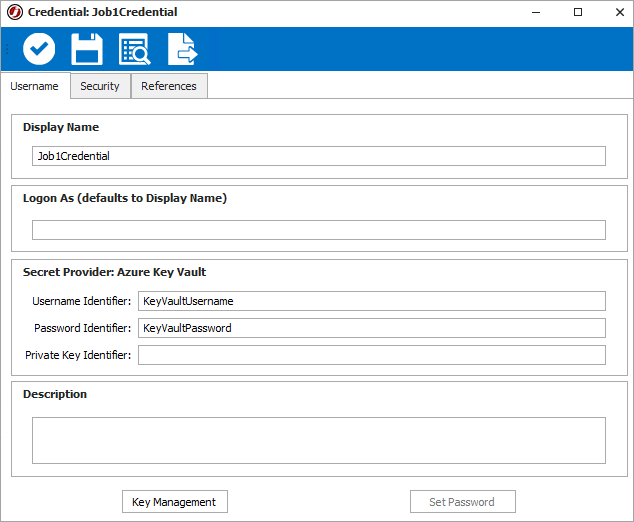
Updates to Credentials or Values
- Existing Credentials cannot be updated to connect to the secret provider, so they will need to be recreated.
- If any information is removed or updated in the secret provider or a connection cannot be made, an error may occur that may adversely affect the execution of Jobs.
- Due to the cache time, you may need to wait 30 seconds for any changes to Credentials to be updated/used.
Azure Key Vault Overview
The Azure Key Vault integration allows JAMS to securely retrieve username, password, and private key values stored in your Azure Key Vault rather than in the JAMS database. To set this up, you will need a registered Azure application with Key Vault access.
Setting a Private Key
Passwords
If you are using a private key in Azure Key Vault, it cannot have a password. Ensure you leave the password option blank. This applies to private keys generated inside and outside JAMS.
Use Azure CLI
If you are setting the private key value in the Azure Portal, it is recommended to use the Azure CLI to ensure the correct formatting is preserved. You may need to manually import the .pem file and then run the command below with updated values for the --vault-name, --name, and --file options.
az login
az keyvault secret set --vault-name MyVault --name MySSHPrivateKey --file "C:\Users\MyName\Documents\PrivateKey.pem"
Configuring JAMS with Azure Key Vault
Before You Begin
You need to have the Azure Key Vault configured and the following:
- The user must have the following permissions:
- The Execute access to Configuration to get the secret provider information.
- The GetPassword access to the Credential to get the username, password, or private key.
- Administrator rights on the user account that will access the c:\Program Files\MVPSI\JAMS\Config\ directory on the JAMS Scheduler. This is a protected directory.
- A registered application for the Azure Key Vault in the Azure Portal with key vault access granted. You need the following information from the application:
- The Directory (tenant) ID
- The Application (client) ID
- The Client Secret Value
- The Vault URL
- Example: https://YourVaultName.vault.azure.net/
Creating a Credential in JAMS for the Azure Key Vault
Before connecting to the Azure Key Vault, create a JAMS Credential using JAMS as the selected secret provider to store the Client Secret value as the password in the Credential. Other fields can be left empty.
You will specify this Credential in the AzureKeyVault.config file in the next section to connect to the Azure Key Vault.
See Working with Credential Definitions for more information on creating a Credential.
Connecting to Azure Key Vault
JAMS provides a sample configuration file you can update and resave to connect to the Azure Key Vault.
- On the JAMS Scheduler, go to c:\Program Files\MVPSI\JAMS\Config\Default.
- Copy and paste the AzureKeyVault.sample file to create a new copy.
- Rename the new copy AzureKeyVault.config.
- Open the new file and update the values within the " " for the following options:
- TenantId
- ClientId
- CredentialName
- VaultUrl
- Save the file and copy it to: c:\Program Files\MVPSI\JAMS\Config\Private.NOTE: If you have a failover environment, copy this file to the same directory on the failover server.
You do not need to restart JAMS for the changes to take effect. You can now specify the Azure Key Vault values in your Credentials and apply them. See Working with Credential Definitions for configuring a Credential with an external secret provider.