Working with Credential Definitions
Credentials in JAMS can have several uses and they can store different types of data, including a username, password, or key value. You can use Credentials to:
- Set the user account to run the Job. This is defined as the Execute As property.
- Authenticate connections to remote services, including mail servers, third-party applications, FTP/SFTP servers, and SQL/Oracle databases.
- Dynamically retrieve values during script execution.
Assigning Credentials
You can assign a Credential to a Job or a Folder. A Folder-level Credential applies to all Jobs within it, but it can be overridden on individual Jobs.
The Execute As property is set on the Job or inherited from a parent Folder. The Credential's ACL controls which users can link, update, delete, or retrieve its password. When a Job is submitted, it runs under the username specified in this property.
Secret Providers
When creating a Credential, choose to store it in the JAMS database or another external secret provider. JAMS stores the data internally; a secret provider retrieves it dynamically at runtime.
The storage type can only be set when you create a new Credential. Existing Credentials cannot be migrated to a secret provider and must be recreated.
Credentials screen
The Credentials screen lets you view all existing Credentials, create new Credentials, and modify existing Credentials. Each Credential displays the following:
- Display name – The name for the Credential that is displayed within JAMS objects, such as Jobs or folders. This does not need to match the Logon Username.
- Description – An optional summary of the Credential.
- Logon Username - The actual username that is used for logging in.
Viewing all Credentials
- Click Credentials in the Shortcuts menu. All Credentials are listed.
- Click a column heading to sort the list.
Adding a Credential
As a prerequisite, all JAMS Credentials must be recognized by the JAMS system before they can be assigned an access level if a domain is included in the Logon As account.
When you create a Credential, you can choose to use JAMS or an external secret provider. Follow the steps below to configure each option.
Adding a Credential using JAMS as the Secret Provider
You can use JAMS to store the credential information.
- Click Credentials in the Shortcuts menu.
- Click +.
- In the Credential Name field, enter a Credential Name.
- In the Secret Provider field, select JAMS.
- Click Ok.
- If the logon name differs from the Credential Name, enter it in the Logon As field.
- Click Set Password.
- Enter a password.
- Click Ok.
- Optional - Click Key Management to manage public and private keys for the JAMS Credential Security object that provides access to the remote server.
NOTE: JAMS supports SSH public/private key pairs directly within the GUI. You can load any existing private key by selecting the Load Key button. Only private keys can be loaded. JAMS then prompts for a Privacy Enhanced Mail Certificate (.pem) file. For information on public keys, see Public Key Authentication.
- Click the Security tab.
- Click + to create an ACE.
- Click New Access Control Entry.
- Use the checkboxes to select the appropriate access types.
- Click Save and Close.
Adding a Credential with an External Secret Provider
Ensure you have the required identifiers from the secret provider for the required username, password, or private key.
- Click Credentials in the Shortcuts menu.
- Click +.
- In the Credential Name field, enter a Credential Name.
- In the Secret Provider field, select the secret provider, such as Azure Key Vault.
- Click Ok.
- Enter the identifier values from the secret provider for the Username Identifier, Password Identifier, and Private Key Identifier fields as needed.
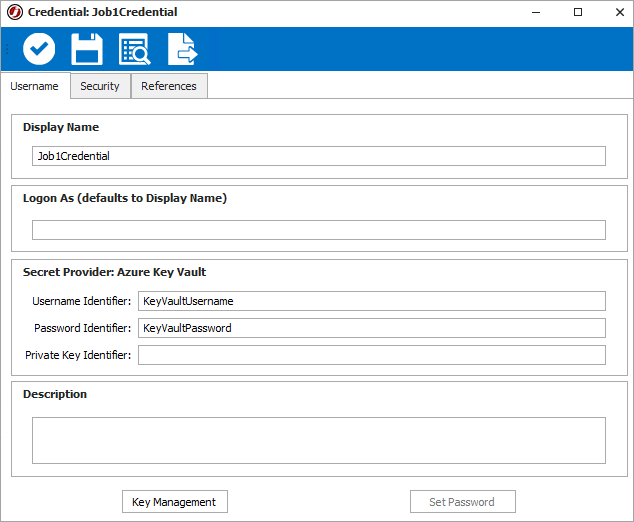
- Optional - Click Key Management to manage public and private keys for the JAMS Credential Security object that provides access to the remote server.
NOTE: JAMS supports SSH public/private key pairs directly within the GUI. You can load any existing private key by selecting the Load Key button. Only private keys can be loaded. JAMS then prompts for a Privacy Enhanced Mail Certificate (.pem) file.
- Click the Security tab.
- Click + to create an ACE.
- Click New Access Control Entry.
- Highlight the desired ACE (Access Control Entry) and use the checkboxes to select the appropriate access types.
- Click Save and Close.
Applying a Credential to a Job or Folder
- Click Definitions in the Shortcuts menu.
- Right-click a Job or a Folder, and select Properties.
- Click the Properties tab.
- In the Execute As field, select the Credential to run the Job.
- Click Save and Close.
Modifying a Credential
You can modify the Display Name, Logon As, and Credential Description.
- Click Credentials in the Shortcuts menu.
- Right-click the name of the Credential you want to edit, and select Properties.
- Edit the Display Name, Logon As, or Description fields. If you are using a secret provider, edit the Username Identifier, Password Identifier, or Private Key Identifier as needed.
- Click Save and Close.
Changing the Password for a Credential
- Click Credentials in the Shortcuts menu.
- Right-click the name of the Credential you want to edit, and select Properties.
- Click Set Password.
- In the password fields, enter the new password.
- Click OK.
- Click Save and Close.
Deleting a Credential
Before you can delete a Credential, ensure there are no objects referencing it. You can check this from the References tab on the Credential.
- Click Credentials in the Shortcuts menu.
- Click the Credential you want to delete.
- Click Delete.
- When prompted, click Yes to confirm.
Credential Properties
Username Tab
| Option | Description |
|---|---|
| Display Name | This property is the name for the Credential displayed in JAMS objects, such as Jobs or Folders. This does not need to match the Logon Username. |
| Logon As | This property is the actual username that is used for logging in. This option is disabled if the Credential is using a secret provider and a value has been entered for the Username Identifier field. |
| Username Identifier | This property is the name for the username value in the secret provider. |
| Password Identifier | This property is the name for the password value in the secret provider. |
| Private Key Identifier | This property is the name for the private key value in the secret provider. |
| Description | This property is an optional summary of the Credential. |
| Key Management | This button lets you manage public and private keys for the JAMS Credential. This option is disabled if the Credential is using a secret provider and a value has been entered for the Private Key Identifier field. |
| Set Password | This button lets you set the password for the Credential. You can change this password as needed. This option is disabled if the Credential is using a secret provider and a value has been entered for the Password Identifier field. |
| Last Changed | This property is the date and time the Credential was added or changed. |
Security Tab
| Option | Description |
|---|---|
| Security |
The Security tab defines the level of access for this Credential. This is an Access Control List with one-to-many Access Control Entries (ACE). Each ACE can specify the following rights:
|
References Tab
| Option | Description |
|---|---|
| References | The References tab lets you view where the Credential is used within JAMS. |