Registering and Configuring Graph API
JAMS supports Microsoft Graph API for use with email notifications. You can also specify a Graph API connection in various places within the application for sending and receiving emails, including:
- Connection Store - Store the Graph API connection information that can be reused in multiple Jobs.
- JAMS PowerShell cmdlets
- Mail Triggers - Run a Job based on an incoming email
- Notifications - Send an email after an event
- Reports - Send a report as an email
- Workflow Jobs - Via the GraphAPISession activity
Configuring JAMS as an Application in the Azure Portal
To use Graph API, you will need to configure JAMS as an application in Azure Portal before you can configure JAMS. Ensure you have configured the following:
- Grant the application the appropriate Microsoft Graph API permissions. In JAMS, Graph API uses the Open Authorization (OAuth) client credentials flow to authenticate in Microsoft Azure.
- To send emails and execute MailWatch Jobs, ensure the Mail.Read, Mail.ReadWrite, and Mail.Send permissions have been added in the Microsoft Graph API permissions. The Mail.ReadWrite is required for MailWatch Jobs.
As part of this process, you need to save the following information from Azure Portal because it is needed for configuration in JAMS:
- Azure Directory (Tenant) ID
- Azure Application (Client) ID
- Azure Client Secret Value
The Client Secret can expire, so configure this as appropriate for your security preferences. When it expires, generate a new Client Secret and update the JAMS Credential as mentioned in the section below.
After you complete the configuration in the Azure Portal, complete the steps in the sections below within JAMS.
Configuring JAMS
After you complete the configuration in the Azure Portal, you must:
- Create the Credentials
- Create the Connection Store item
Creating Credentials
You need two Credentials in JAMS when working with Graph API:
- A Credential is used to store the Client ID and Secret Value Key. You can use the Logon As field for the Client ID and the password for the Secret Value Key.
- A Credential is used to save the mailbox information. You can use the Logon As field for the email address to monitor.
See Working with Credential Definitions for more information on creating a Credential.
Creating a Graph API Connection Store
To use Graph API in JAMS, you need to create a Connection Store item. This will store the connection information, so you can reuse it in multiple places within JAMS. The Connection Store item is used when a MailServer needs to be specified. You will need:
- The Tenant Id from the Azure Portal.
- A Credential that contains the Client ID and Client Secret Value.
- A Credential to save the mailbox information.
See Connections to Mail Servers for more information.
Using Graph API in Specific Features
You can use Graph API in various places in JAMS. The sections below are optional based on how you use Graph API in your environment.
Using PowerShell Scripts using JAMS cmdlets
If you are using the JAMS PowerShell cmdlets, you can use Graph API with a new cmdlet named Connect-JGraph. The PowerShell cmdlet has a JAMSConnection argument that should be updated to use the Graph API Connection Store object.
Example: Getting an email based on the subject
Import-Module JAMS
$cred = Get-JAMSCredential -Username GraphAPI_ConnectionCredential -Server localhost
$conn = Get-JAMSAgent GraphAPI_Connection -server localhost
$mailServer = Connect-JGraph -JAMSConnection $conn -Credential $cred
$mailHeader = Get-JMailHeader -Subject "MailMessage_Subject" -Unread
$mailMessage = Get-JMailMessage -MailServer $mailServer -InputObject $mailHeader[0]
See JAMS PowerShell Cmdlets for more information.
Using Mail Triggers
If you use Mail Watch Jobs, you can update them to use the Graph API Connection Store object. These are Schedule Items that are added to a Job by using the Run this Job | based on an email option, and they run a Job based on a received/monitored email.
To use Graph API, you need to add the Graph API Connection Store item that you created to the Mail Server field and any email information, such as To Address, From Address, or Subject. See Triggers for more information.
Using Notifications
You can have an email sent to an address if a specified event occurs. For example, if a Job is set to a Runaway status and it has an event flag or finishes in failure, you can have an email sent to alert someone to review the Job in the Monitor.
If you use notifications, you can update them to use the Graph API Connection Store object. These are Schedule Items that are added to a Job by using the When an event occurs | send an e-mail option. To use Graph API, you need to add the Graph API Connection Store item that you created to the Mail Server field. See Events and Notifications for more information.
Using Reports
You can use JAMS to create and send a report as an email. Use the JAMS Reports Execution Method to create a Job that creates a Report. You can then add the Schedule Item to have the report sent as an email.
If you use reports, you can update them to use Graph API the Connection Store object. These are Schedule Items that are added to a Job by using the Send a report | as an e-mail option. To use Graph API with a Trigger, you need to add the Graph API Connection Store item that you created to the Mail Server field. See Reports for more information.
Using Workflow Jobs
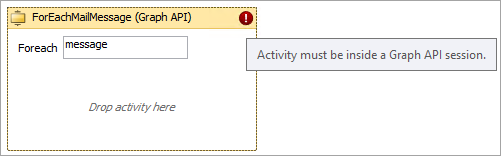
You can use Graph API within Workflow Jobs. To use Graph API, use the GraphAPISession activity has the main container to hold your other Mail Server Session Workflow Activities. This allows all activities within the GraphAPISession activity to inherit the mail server properties from the Connection Store item. If you add an activity, such as ForEachMailMessage, outside the GraphAPISession activity, a red icon and error message is displayed.
- Click Definitions from the Shortcuts menu.
- Click a Folder where the Job will be saved.
- Click +.
- In the Name field, enter a name for the Job.
- In the Execution Method field, select Workflow.
- Click Ok.
- In the Toolbox, go to the Mail Server Session section.
- Drag and drop the GraphAPISession to the Activity panel.
- In the JAMSConnection field, enter the name of the Connection Store item for Graph API in quotation marks, such as "GraphAPIMailConnection".
If you enter values for the remote JAMSServer, MailServer, or Port fields, they will override the values in the Connection Store item. Ensure you use quotation marks for the JAMSServer or MailServer fields. - Drag and drop additional activities as desired.
- Click Save and Close.
- Run the Job.